Turn Images into Videos with Prompt-Based Motion
Describe the motion you want with simple text prompts, including camera push, subject movement, lighting shifts, background activity, and cinematic pacing.

Use image to video AI to turn a still image into a video with motion, camera movement, atmosphere, and scene direction. Upload one image or multiple reference images, write a motion prompt, and generate AI videos for product ads, social media, ecommerce, and brand storytelling.
Original Image
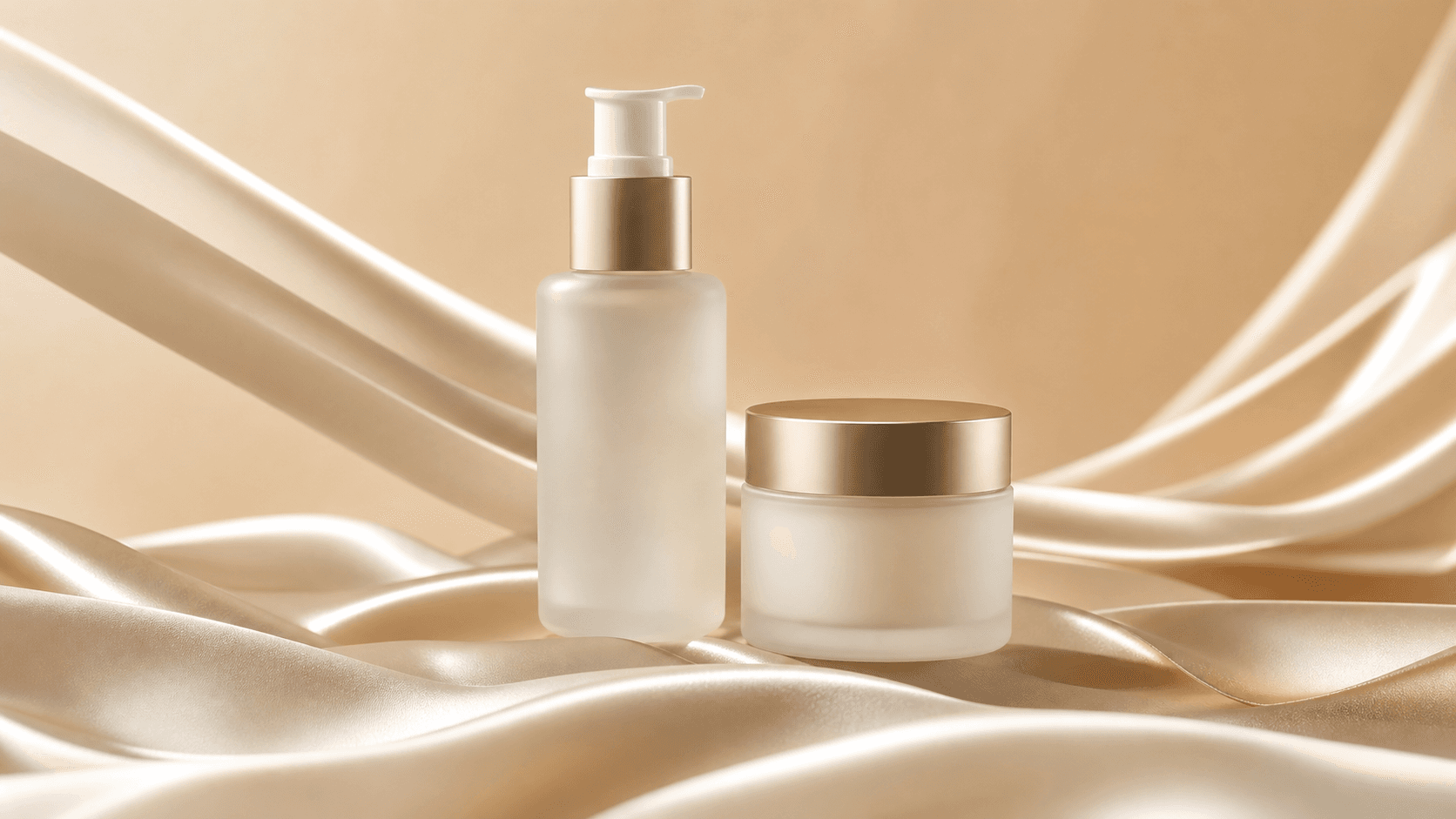
Prompt
Sample Video
Original Image
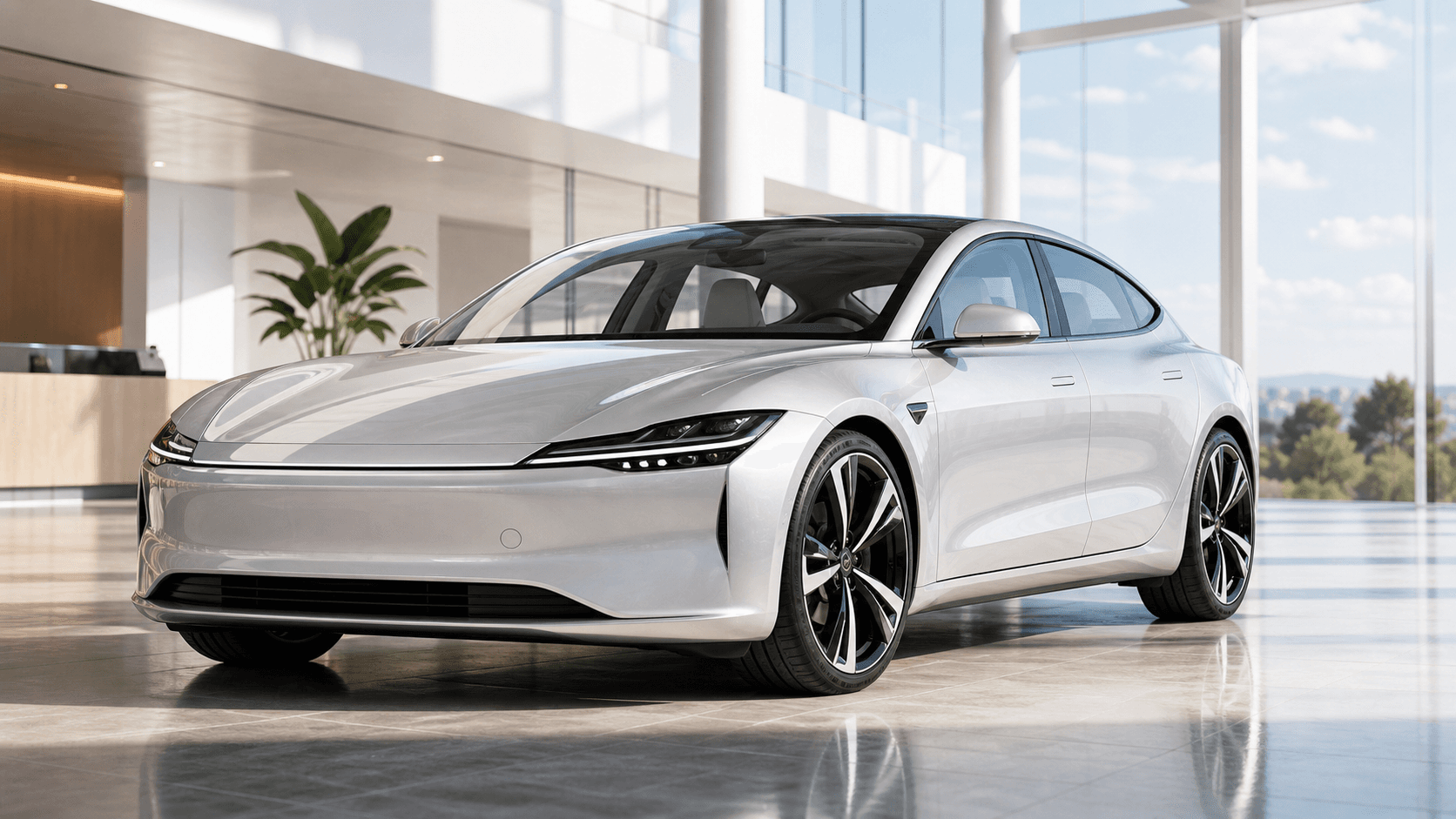
Prompt
Sample Video
Original Image
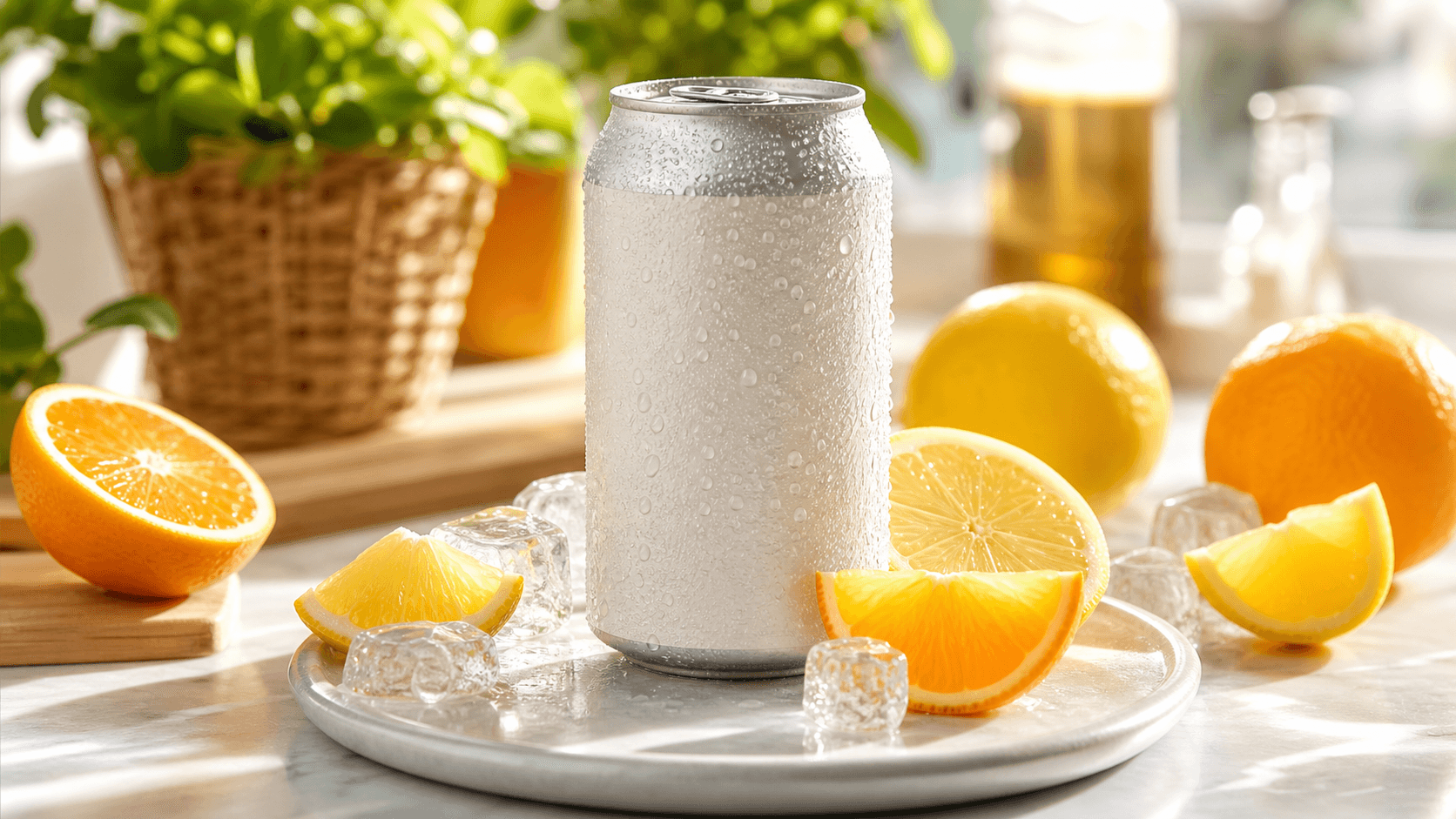
Prompt
Sample Video
An image to video AI generator helps teams convert existing visuals into motion content without rebuilding every concept from scratch. Start from a single product photo, or upload multiple reference images to guide product details, brand style, characters, scenes, and motion direction.
Describe the motion you want with simple text prompts, including camera push, subject movement, lighting shifts, background activity, and cinematic pacing.
Upload multiple images to guide product shape, brand assets, character identity, scene composition, or start and end frame direction when the selected model supports it.
Turn product photos, packaging shots, and launch visuals into short AI videos for ecommerce pages, paid ads, product campaigns, and retail promotions.
Generate image to video outputs for TikTok, Instagram Reels, YouTube Shorts, square feeds, vertical placements, and other social media formats.
Multiple images to video AI workflows are useful when one reference image is not enough. Add a product photo, package detail, brand visual, character pose, environment image, or ending frame so the video generator has more visual direction before it creates motion.
Start with the strongest product, portrait, artwork, or campaign image as the main visual anchor for the video.
Upload extra images to guide material, color, packaging, character consistency, scene mood, or brand direction.
For models that support start and end image guidance, use two images to describe where the video begins and where the motion should resolve.
Explain the action, camera movement, pacing, lighting, and atmosphere so the AI combines your visual references with a clear video direction.
These examples show how image to video AI can turn static visuals and multiple image references into usable video assets across real creative workflows.
Start with a product image, then add packaging, texture, or lifestyle references to create a product video with camera motion, lighting changes, atmospheric movement, and stronger commercial context.
Animate key visuals, packaging shots, portraits, and branded graphics to create campaign-ready videos with subtle motion, polished scene energy, and consistent visual storytelling.
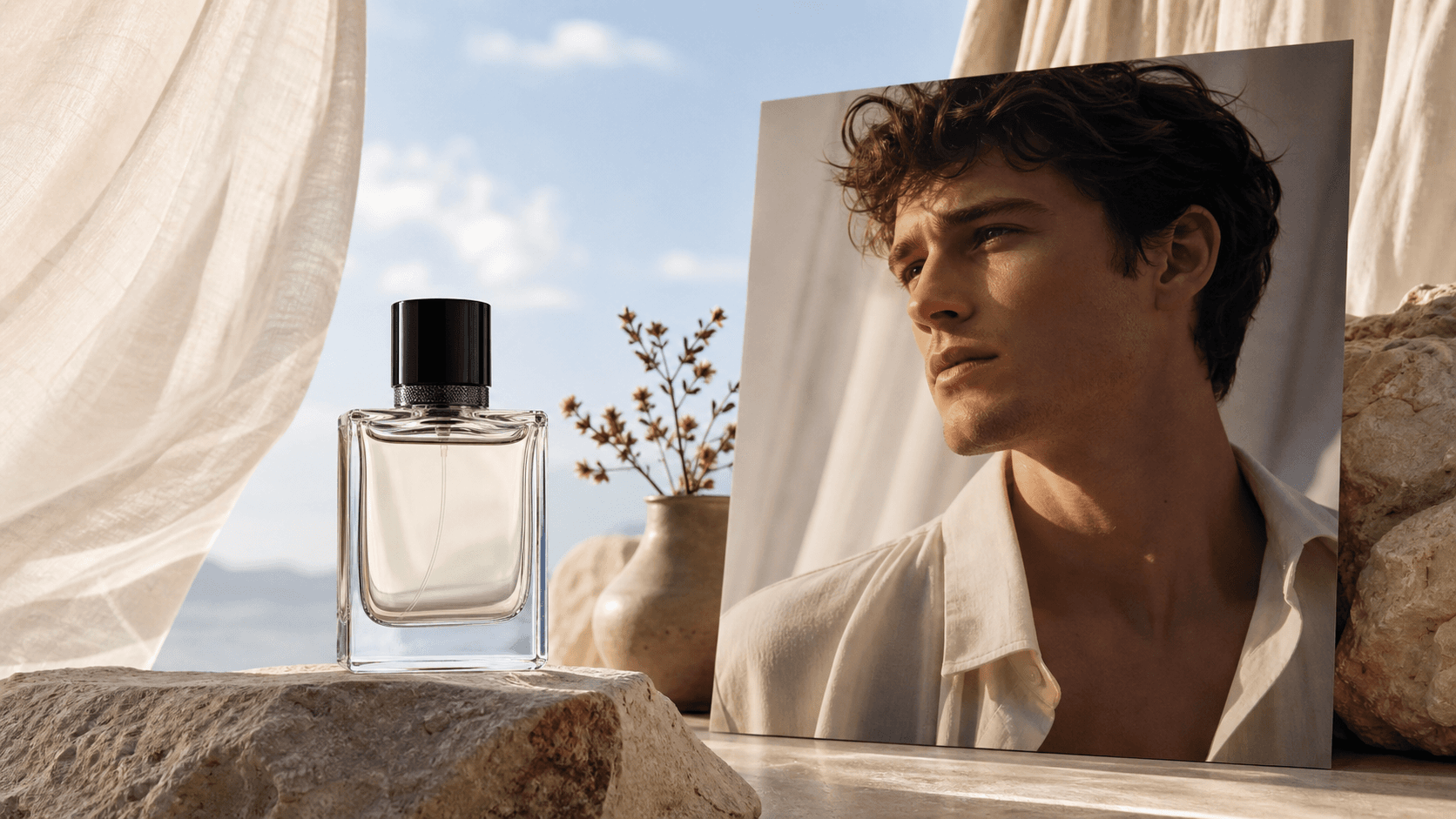
Convert posters, lifestyle photos, creator assets, and promotional graphics into short AI videos for social publishing, paid social, and fast-moving content calendars.
Upload one image or multiple reference images, describe the motion, choose the right video settings, and generate a video you can use or refine.
Start from a product photo, portrait, illustration, brand asset, campaign image, or multiple visual references for richer video direction.
Describe camera movement, subject action, atmosphere, lighting changes, transitions, or how the AI should combine your image references.
Select aspect ratio, resolution, duration, and model options based on the platform or campaign you are creating for.
Create the AI video, compare motion directions, then download or regenerate until the result matches your creative brief.
Image to Video AI helps turn existing visual libraries into a steady stream of video assets for marketing, commerce, and creative production.
Create product demos, hero clips, marketplace visuals, and launch assets from existing product photography.
Generate video variations for hooks, angles, visual concepts, and campaign tests without starting every asset from scratch.
Turn brand images, creator posts, campaign graphics, and posters into short videos for social publishing.
Combine key visuals, product references, portraits, and brand assets into launch teasers, campaign videos, and landing page media.
Animate illustrations, avatars, fantasy scenes, game art, and concept designs with reference images for stronger visual consistency.
Use two images to test beginning and ending frame direction for supported models, then refine the motion prompt between them.
Answers to common questions about single image uploads, multiple reference images, prompts, video settings, and getting better generation results.
An image to video AI generator turns a still image or a set of reference images into a moving video using AI-generated motion and prompt-based direction.
Yes. You can upload multiple reference images so the video generator has more visual direction for product details, brand style, characters, scenes, or composition.
For models that support start and end image guidance, two images can help describe where the video begins and where the motion should resolve.
One image usually acts as the main subject. Multiple reference images can add supporting details such as product texture, packaging, scene mood, character identity, or visual style.
Yes. You can create product videos, ad creatives, launch visuals, and ecommerce content from product photos or campaign images.
Yes. Use the prompt to guide camera movement, subject action, lighting, atmosphere, background effects, and overall visual style.
Clear, high-quality images with a strong subject usually work best. Product photos, portraits, illustrations, concept art, and campaign visuals are strong starting points.
No. Multi-image behavior depends on the selected model. Some models use multiple images as references, while others may focus on one main image or start and end frame guidance.
Yes. Image to Video AI is ideal for TikTok, Instagram Reels, YouTube Shorts, paid social ads, and other short-form content needs.
Use a clear image, write a specific motion prompt, choose settings that match your target platform, and generate variations to compare different directions.
Sample Video